

User Manual
Understanding Your Devices
Tap any device to open its detail page, where you can control it and see how it's performing.
🎥 Watch: Device Features
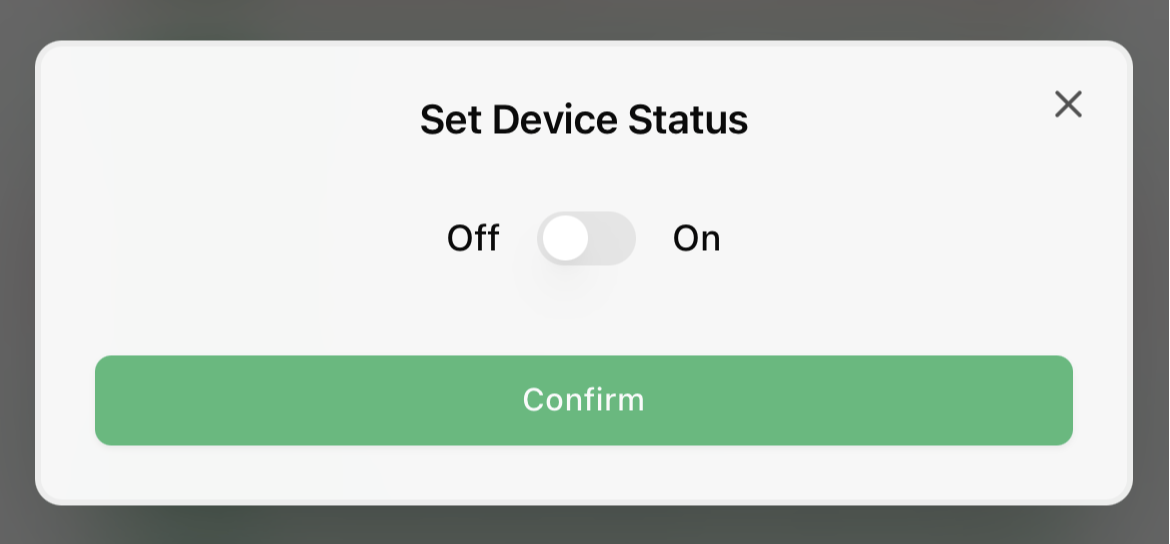
Turning a device on and off
Use the status toggle at the top of the device page (labelled "Plug Status", "Switch Status", and so on depending on the device). You'll get a confirmation: "Device turned ON" or "Device turned OFF".
A locked device shows a lock icon and can't be toggled — see Why is my device locked?.
Live stats
- "Real-time Power" — current draw in watts (W). Air conditioners show "Set Temperature" in °C.
- "Last Heartbeat" — when the device last reported in.
- Power chart — power use over the selected hour; use the arrows to move between hours.
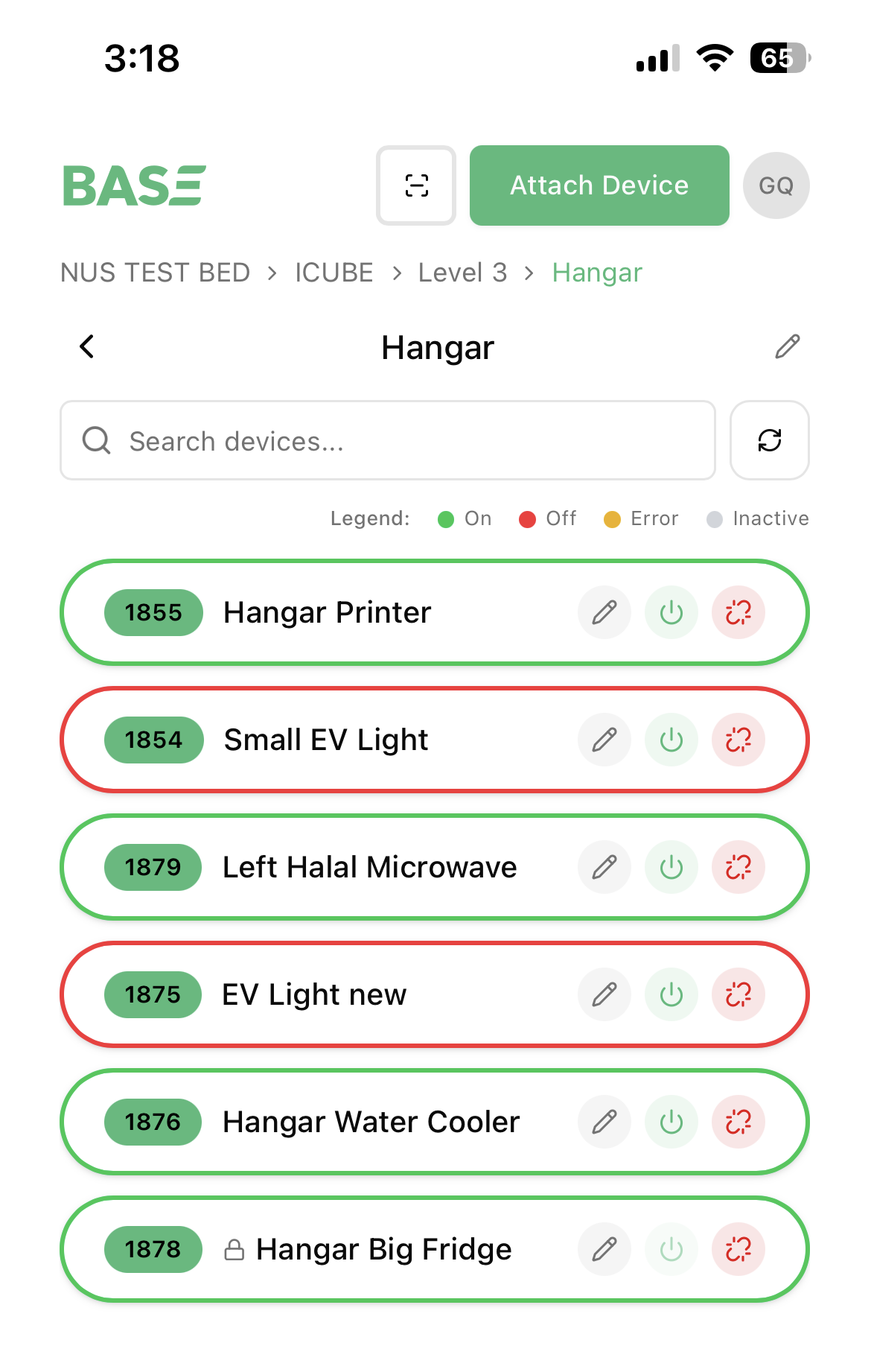
Device status colours
Each device card has a coloured border:
- Green — On
- Red — Off
- Yellow — Error (offline or a communication problem)
- Grey — Inactive (hasn't reported in recently)
Per-device actions
Tap the "+" menu (bottom right) on a device to open its features:
- "Set Device Schedule Timer" — see Using Features
- "Send Wi-Fi Config" — see Wi-Fi setup
- "EcoGuard" (plugs only) — see Using Features
Last modified on