

How to Set Up Wi-Fi with Local IP address?
Using your phone/computer to change the Wi-Fi of your Ecovolt Plug when it is not connected to Wi-Fi and the system name cannot be changed from the Cloud
Watch the demo videos:
- Changing Volta Wi-Fi via Everest — change Wi-Fi configuration through the Everest platform
- Volta Wi-Fi Mode & Local Setup — activate Wi-Fi mode on the plug and connect locally
Solution
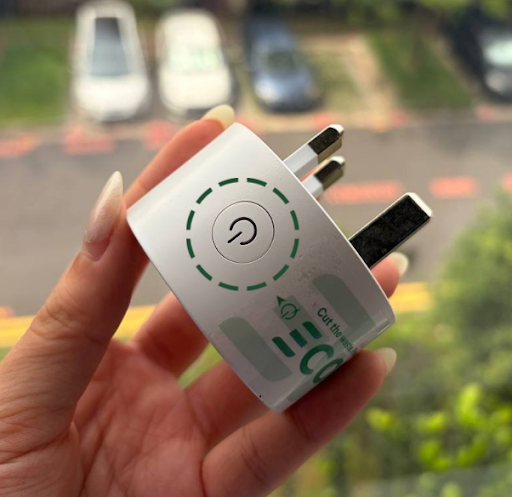
- While holding down the side button, turn on the main switch so power flows to the plug. Keep holding the side button until its blue LED light starts to blink twice per second (this indicates the local server is active). The plug must be powered on for this to work — holding the button alone does nothing without power flowing through.
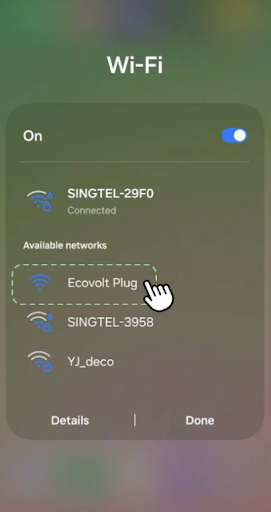
- Go to your phone or computer and click on “Ecovolt Plug” to connect to the plug’s Wi‑Fi network
- Open a browser and go to: http://192.168.4.1
You will brought to this page:
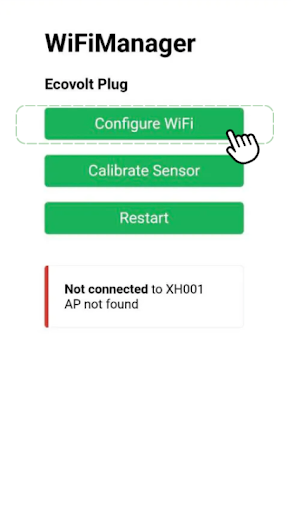
- Click “Configure Wi‑Fi”
You will be brought to this page:
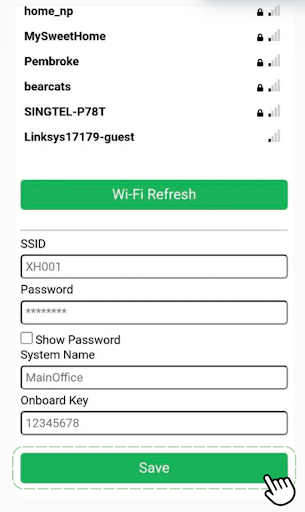
"SSID" enter the Wi-Fi SSID (Wi-Fi name), you want to change the plug Wi-Fi to (The Wi-Fi SSID can also be autofilled by selecting from the list of available networks)
"Password" enter the password of the Wi-Fi you entered in “SSID”
"System Name" & "Onboard Key" can be left blank for now
Click on Save to confirm the change
- The device will then test the provided credentials.
On successful connection ✅, you will be brought to this page:
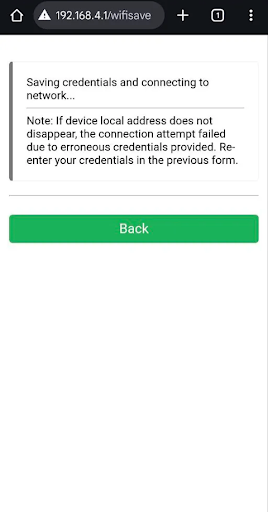
The device then closes the local server and resumes normal operation, the browser may now be closed 🎉
However, on unsuccessful connection ❌, the local server remains open and you will brought to this error screen:
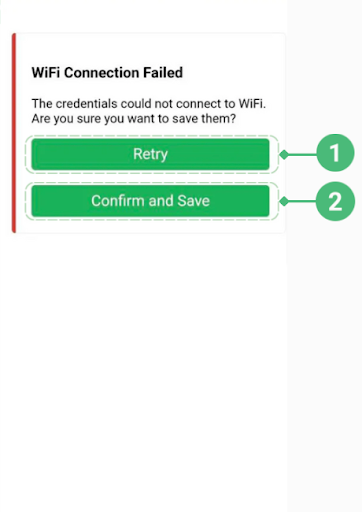
Likely reasons include:
- Incorrect password
- Device being out of range of the target Wi‑Fi
If the credentials are believed to be correct, select “Confirm and Save” labelled as 1 to store them. The device will close the server and operate using the new credentials, the browser may now be closed 🎉
Otherwise, to try again, select “Retry” labelled as 2 to return to the previous page and re‑enter the details.